This guide is for iPhone and iPad users considering a Shadowrocket purchase or checking an app they already installed. Note the developer name and app ID, then open the App Store product page and verify the icon and product link. Find steps for previous purchases, missing search results, and lookalike icons. Once verified, proceed with first-time authorization or import your existing configuration—so connection issues don’t get confused with app identity concerns.
Start with these three identifiers
Shadowrocket is a paid app distributed through the App Store, available as a one-time purchase. To verify it, check the developer name, official icon, and app ID—not just the name in search results. “Shadowrocket” may appear in similar listings, but matching search terms or similar titles don’t confirm that you’re viewing the same app.
Each identifier serves a different purpose: the developer name confirms who published the app, the icon helps you screen listings at a glance, and the app ID identifies the specific product. Icons can be copied and titles can look alike, so visual checks are only a first filter—not a substitute for checking the App Store listing. If anything doesn’t match, stop before purchasing and return to the correct product page.
Open the listing from search and check each detail
Don’t confirm a purchase based only on the first search result. Open the product page, verify the app’s identity, then review compatibility and price. These steps are for checking before your first purchase. App Store button labels may vary by system language, but the details to verify remain the same.
-
Open the verification page
Go to this site’s authenticity check guide, then use its App Store button to open the product page. If you search manually, use the full name Shadowrocket and open the product page rather than relying on the search preview.
-
Verify the developer
Check the developer details on the product page and confirm the name is Shadow Launch Technology Limited. Don’t mistake the app name in the description, search ad text, or screenshot captions for the developer field.
-
Compare the official icon
Compare the App Store icon with the official icon shown in the next section: a white background with a blue-purple outlined rocket. Similarity is only a reason to keep checking; verify the app ID too.
-
Check the product link
Use the App Store product page’s share option to view or copy the product link. Confirm the host is
apps.apple.comand the product identifier in the path isid932747118. The full link structure is shown below. -
Confirm purchase details
Review the current App Store page for price, compatibility, and purchase details before proceeding. System requirements, store pricing, and purchase availability are as listed on the App Store page.
When checking a shared link, inspect its actual URL—not the title someone gave it. A webpage that says “Shadowrocket” doesn’t necessarily link to the app. If the URL has passed through multiple redirects, return to the App Store from this site’s authenticity check page; the link is easier to verify there.
https://apps.apple.com/us/app/shadowrocket/id932747118The us in the address above is part of the storefront path, not the app ID. To verify the product, check the App Store domain and id932747118. Purchase availability and displayed prices depend on the store associated with your current account. Don’t skip the identity check just to see a particular price.
How to check the icon—and what it can’t tell you
Below is the official Shadowrocket icon for comparison. Check the icon on the App Store product page, not just in tutorial images, chat pictures, or decorative graphics on a webpage. Details may be hard to see in a small or compressed image; when in doubt, prioritize the developer name and app ID.
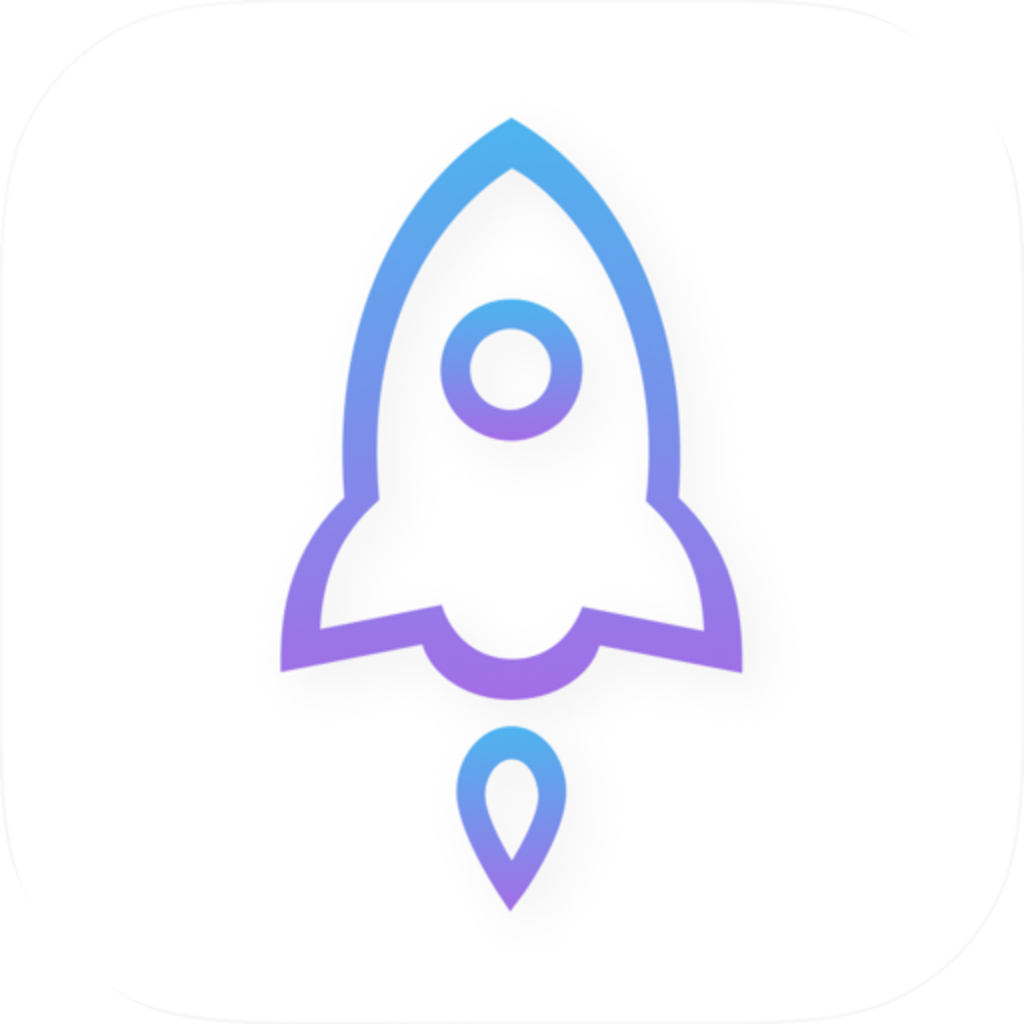
| Check | What to verify | Common mistake |
|---|---|---|
| Product name | Shadowrocket | Assuming an app is genuine just because it uses the name “Shadowrocket” or a similar name. |
| Developer | Shadow Launch Technology Limited | Mistaking text in the app description for developer information. |
| Official icon | A blue-purple outlined rocket on a white background, matching the official icon on this page. | Judging by the rocket shape or similar colors alone. |
| App ID | 932747118 | Mistaking the storefront path or sharing parameters in a link for the product ID. |
| Price and search ranking | Useful for checking current purchase details, but not for verifying identity. | Assuming the app is the right one because its price is similar or it ranks near the top of search results. |
Price, search ranking, ratings, and review counts don’t identify an app. They can’t replace the developer field or prove that two similar icons belong to the same product. If the interface in a screenshot differs from a tutorial, don’t jump to conclusions. Verify the App Store listing first, then check for differences in device, display, or settings.
What to do with installed apps, purchase history, and search issues
Having the app installed doesn’t mean you have to rely on its Home Screen icon to verify it. Find Shadowrocket in your App Store account’s purchase history, open the corresponding product page, and check the developer and app ID. For the situations below, check your records first; don’t rush to buy again or delete configurations.
Several apps have similar names. Which one should I open?
Open the product page named Shadowrocket, check that the developer is Shadow Launch Technology Limited, then verify id932747118 in the shared link. If you still can’t confirm the listing, open the product from this site’s authenticity check page instead of relying on its search position.
I bought it before. Why am I seeing a price again?
First, check whether the Apple Account currently used for purchases is the one you originally used, then look for Shadowrocket in your purchase history. A price button doesn’t tell you whether an app is genuine, so don’t pay again based on that alone. For purchase history questions, use App Store Support.
I can’t find it in my store. Has the app name changed?
Don’t assume the name has changed. Open the product page from the authenticity check page and review the availability or compatibility information shown by the App Store. Search results may also depend on storefront availability or account restrictions; follow the page’s guidance.
I’ve already installed it. Should I delete it to verify?
Keep your existing data for now. Check the app’s identity using App Store purchase history and the product page. If you later need to switch apps or reinstall, first make sure your configuration is backed up. Don’t enter a new subscription URL or connection credentials into an app whose identity you haven’t confirmed.
Shadowrocket is primarily used on iPhone and iPad. Check the App Store page for compatibility and purchase availability on Mac, Apple TV, and Apple Vision as well. Don’t assume every device meets the requirements just because the app has the same name; system requirements are as listed on the App Store page.
After verifying the app, troubleshoot connection settings separately
Once you’ve confirmed the app’s identity, follow the system prompts to authorize the VPN configuration for first-time use, then import your existing connection details. Home, Config, and Settings relate to connections, configurations, and preferences, but the interface labels aren’t proof that an app is genuine. A failed connection doesn’t mean the app’s identity is in question: check server availability, configuration details, and your current network separately.
For example, Global Routing in Home, along with Config, Proxy, and Direct, controls how traffic is handled—it doesn’t represent different purchase tiers. The comparison below covers settings within Shadowrocket only. The recommended option assumes you already have valid connection details and a suitable rules configuration. Don’t switch these settings just to test whether the app is genuine.
Config
RecommendedUse the rules in your active configuration to determine how traffic is handled. DIRECT rules, proxy policies, or policy groups determine where traffic goes; unmatched requests don’t necessarily go direct. Check the final policy specified by FINAL.
Best for: everyday use with a valid rules configuration when you want traffic routed according to those rules.
Proxy
Handle traffic managed by the app in a proxy mode, temporarily ruling out the effects of normal rule-based routing. A connection still depends on the selected server and your current network; switching modes doesn’t guarantee one.
Best for: temporarily checking whether rules are affecting a connection after confirming your connection details are valid.
Direct
Handle traffic managed by the app in a direct mode, without using a proxy server. This is a traffic policy—not a way to turn off the system VPN connection or check whether you’ve purchased the app.
Best for: temporarily checking direct access on your current network.
If the connection turns back on after you manually disconnect, check Settings → On Demand. On Demand can establish connections under certain conditions; it isn’t an indicator of purchase status. You don’t need to enable it to verify the app. When troubleshooting automatic connections, note the current settings first, then change and test them to avoid mistaking an automatic trigger for an unresponsive button.
Final checks before paying or importing a configuration
A complete check should answer three specific questions: Does the product page show the correct developer? Does the icon match the official one? Does the product link contain the correct app ID? Once all three match, review the current price and compatibility details. Don’t substitute “the icon looks about right” or “someone said this is the app” for records you can verify yourself.
- Confirm the name Shadowrocket and the developer Shadow Launch Technology Limited.
- Compare the icon with the official one on this page and confirm the App Store product ID is
id932747118. - If you’ve already purchased the app, check the original account’s purchase history before deciding whether to try again.
- Check device compatibility, system requirements, and price on the current store page; don’t rely on old screenshots.
- After verifying the app, import a subscription or connection configuration from your service provider. Treat subscription URLs as sensitive information.
Finally, handle buying the app, obtaining connection details, and choosing a traffic policy as three separate tasks. The App Store listing confirms the app’s identity and purchase details; your service provider supplies connection configurations; Global Routing and rules determine how requests are handled. Check each separately so you know where to look when something goes wrong.