App Store purchase Official user manual

Shadowrocket User Guide

A rule-based proxy client for iPhone / iPad, with rule-based routing and a one-time purchase through the App Store. Start by verifying the official listing, then import an existing configuration.

Shadowsocks VMess VLESS Trojan Hysteria2 WireGuard
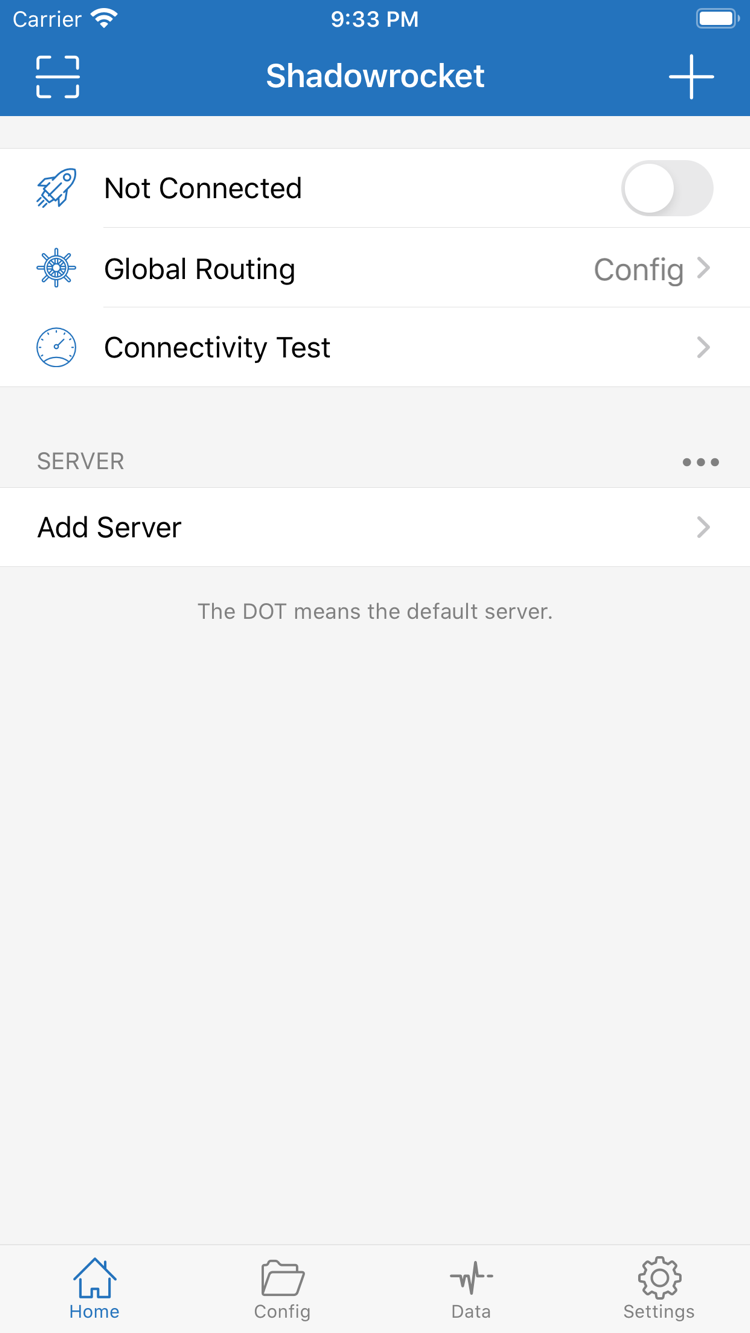
Shadowrocket app home screen

How to read the configuration

Requests, rules, and policies

First, choose how Global Routing should work, then review the rules in Config. In Config mode, requests are checked in rule order, and the first match determines the policy. PROXY, DIRECT, and REJECT are different handling actions, not protocol types. The example below explains the syntax; it is not a ready-to-use configuration for every network.

Server protocols, authentication details, and transport settings must match. The required fields differ for Shadowsocks, VMess, VLESS, Trojan, Hysteria2, and WireGuard. When adding a server, choose its Type based on the information you already have rather than trying different protocols to guess how to connect. Get subscription details from your service provider. After importing them, test the connection.

Request Rule Policy
DOMAIN-SUFFIXGEOIPPROXYDIRECT

Global Routing: choose a mode

Open Global Routing from Home and choose Config, Proxy, or Direct for your needs. Config routes traffic according to the rules in the active configuration. Proxy sends traffic through a proxy and is useful for checking whether the selected server is available. Direct connects to the destination without using a proxy, so it does not test the proxy server. For everyday rule-based routing, select Config and check which configuration file is active. After switching modes, make a new request and check Logs to see how it was handled. Existing long-lived connections may continue using their previous route, so don't judge the result solely by whether a page is already open.

[Rule]
DOMAIN-SUFFIX,example.com,PROXY
IP-CIDR,192.168.0.0/16,DIRECT
FINAL,DIRECT

Need a field-by-field explanation? Read the Rule and configuration field reference →. Importing existing information for the first time? Follow the Getting Started guide to connect and test, then adjust the rules.

Devices and availability

Get Shadowrocket for iPhone and iPad

Shadowrocket is available only through the App Store. Before purchasing, check the product name, developer, and app ID. System requirements and purchase eligibility are as listed on the App Store product page. If you've already purchased the app, check your Purchased items before trying to buy it again. Also verify the account currently signed in to the store separately from the account used for device sync.

Shadowrocket is also available from the same App Store for Mac and Apple TV. Compatibility, system requirements, and purchase eligibility are as listed on the App Store product page.

Before connecting for the first time, understand the two types of authorization

Purchase confirmation happens in the App Store; adding a VPN configuration happens in the device's system settings. These are separate steps. Installing the app doesn't establish a connection, and allowing a system configuration doesn't mean the server details are correct. When you first open the app, check that your existing configuration is complete, select a server, and connect. If the system asks to authorize a configuration, confirm after reviewing what it does, then follow the device prompts to complete verification. If you cancel, return to the client and start the action again.

Verify each device separately, even when using two devices. The same subscription may provide the same server information, but the current network, Config selection, and local permissions may differ. First complete a minimal working setup on one device and note the protocol and mode. Then check each item on the other device. If results differ between Wi-Fi and cellular, keep the test destination the same and change only the network. This makes it easier to tell whether the issue is network reachability or a setting on the device.

What to read after installation

For your first setup, start with Getting Started: prepare existing subscription or server details, choose the right import method, check Global Routing, connect, then verify with a specific request and Logs. If you already have a configuration but some destinations are routed incorrectly, consult the configuration field reference and check rule order, policies, and domain mappings. Checking installation, connection, and routing separately helps avoid changing multiple settings at once and losing track of what caused the issue. It also makes it easier to keep a recoverable configuration copy.
Authenticity and purchase details

Verify the App Store listing, then manage your configuration

Shadowrocket Docs is the official website and user manual for Shadowrocket. The app is closed-source commercial software; purchases, installation, and updates are managed through the App Store. This manual explains how to use the client and does not provide, sell, or recommend servers or subscriptions. Verify the product details before purchasing, and make sure you already have a valid configuration before connecting.

Developer Shadow Launch Technology Limited App ID 932747118 One-time purchase

Authenticity Check: verify the name, icon, and app ID

Search for Shadowrocket in the App Store and open the product page rather than relying on the name in search results. Check that the developer is Shadow Launch Technology Limited, compare the icon with the official icon used on this site, and confirm that the product page URL contains app ID 932747118. A similar name does not mean it's the same product; use the product page to verify the details. The links and purchase instructions on this site refer to this product page.

The icon is one way to identify the app, but it can't replace the other two checks. If the search results don't look right, open the specified product page from the App Store purchase guide and review the information shown for your current storefront. Verify the product before reading reviews or feature descriptions. Before purchasing, check the displayed price and system compatibility. App Store listings may change, so rely on the current product page rather than an old screenshot.

App Store availability: check your storefront and account

Visibility and currency display can vary between App Store storefronts. If the app doesn't appear in search, check the spelling, the storefront for your current App Store account, and any product page notices. An unavailable purchase, an incompatible device, and an incomplete payment are different issues with different next steps; don't treat them all as installation failures. Prices, system requirements, and purchase eligibility are as listed on the App Store product page. This manual does not replace the store's current information.

Device sign-in and App Store purchase status are separate. To check a past purchase, make sure you're signed in with the account used to buy the app and confirm that the transaction was completed. If the page offers a way to get the app again, follow the system prompts. If it still shows a price, check your purchase history and account details before assuming the purchase failed. Keeping the App Store transaction record can help with verification. Don't share account, billing, or payment information when asking for help publicly.

One-time purchase: the app and connection services are managed separately

A one-time app purchase is not a service plan. The US storefront price reference is $2.99; prices are shown in local currency in other storefronts, and the final amount is as listed on the App Store product page. The one-time purchase covers the client. It doesn't add a server to Home or create a subscription URL. Get an existing subscription from your service provider. For an existing server, enter its protocol, address, port, and authentication details. Check that the information is complete before importing, then test the connection.

A failed subscription update and a successful app purchase are separate matters. The App Store manages purchase records; your service provider supplies subscription content and determines whether it is valid. First identify where the issue occurs: if you can't get the app, check the store; if the expected entries are missing, check the import; if an entry is present but won't connect, check the server details and network; if only some requests fail, review the rules and name resolution. Troubleshooting by stage preserves evidence and reduces the risk of losing configuration, unlike repeated reinstalls.

Restore a purchase: restoring the app doesn't restore its configuration

Use Purchased items under the same Apple ID to find Shadowrocket. Purchase eligibility for iPhone and iPad is as listed on the App Store product page. When switching devices or reinstalling, restore the app first, then restore server details and configuration files. Check the App Store page and account settings to see whether Family Sharing applies. Having the app installed on one device doesn't mean another device has the same purchase status. If the store displays a prompt during recovery, complete the relevant account verification first.

For configuration recovery, check whether iCloud sync is enabled in advance and prepare an export copy of any configuration you need. Confirm separately what sync and export include, especially the active Config, manually edited rules, and server details. After restoring, review the list, selected server, Global Routing, and system permissions. Verify an actual request before enabling automatic connection conditions. Backups may contain authentication details, so keep them somewhere you control and remove sensitive information before sharing diagnostic material.

App updates and configuration changes: verify one variable at a time

App updates are managed through the App Store. Use automatic updates or check manually in the store settings on your device. The interface and available options depend on the installed version of the app. Keep important configurations before updating, then check existing connections and frequently used destinations. There's no need to rebuild everything just because an interface element has moved. Subscription refreshes, Config edits, and app updates are separate changes. Record them separately so you can identify what changed if an issue occurs, rather than replacing everything at once.

For routine maintenance, keep a copy of a configuration you've tested successfully. To change routing, note the destination domain and expected policy, then edit the relevant rule and make a new request after saving. If the result differs from what you expected, find the first matching rule and check whether an earlier, broader rule takes precedence. Then check the server or group referenced by the policy. Make one change at a time: keep it if verification succeeds, or roll it back if it fails. The same approach works for small tests of Host mappings and URL Rewrite.

Related guides

Purchase verification, first-time setup, and configuration migration

These three articles cover identifying the right product before purchase, making your first connection, and restoring your setup on a new device. Choose the article that fits what you're doing; there's no need to change every setting at once. The instructions assume you already have a configuration. For prices, compatibility, and purchase eligibility, check the App Store product page.

View all articles →